Join Quiethaven as a pastor
Quiethaven is a quiet companion for daily Christian prayer on iPhone. Pastors on Quiethaven hold private one-on-one voice conversations with people who ask for them. For an approved pastor the whole app is free.
No invitation or code is needed. You sign up, send your ordination documents, and a moderator reviews them.
This button works once Quiethaven is installed on this iPhone. Not installed yet? Start with step 1.
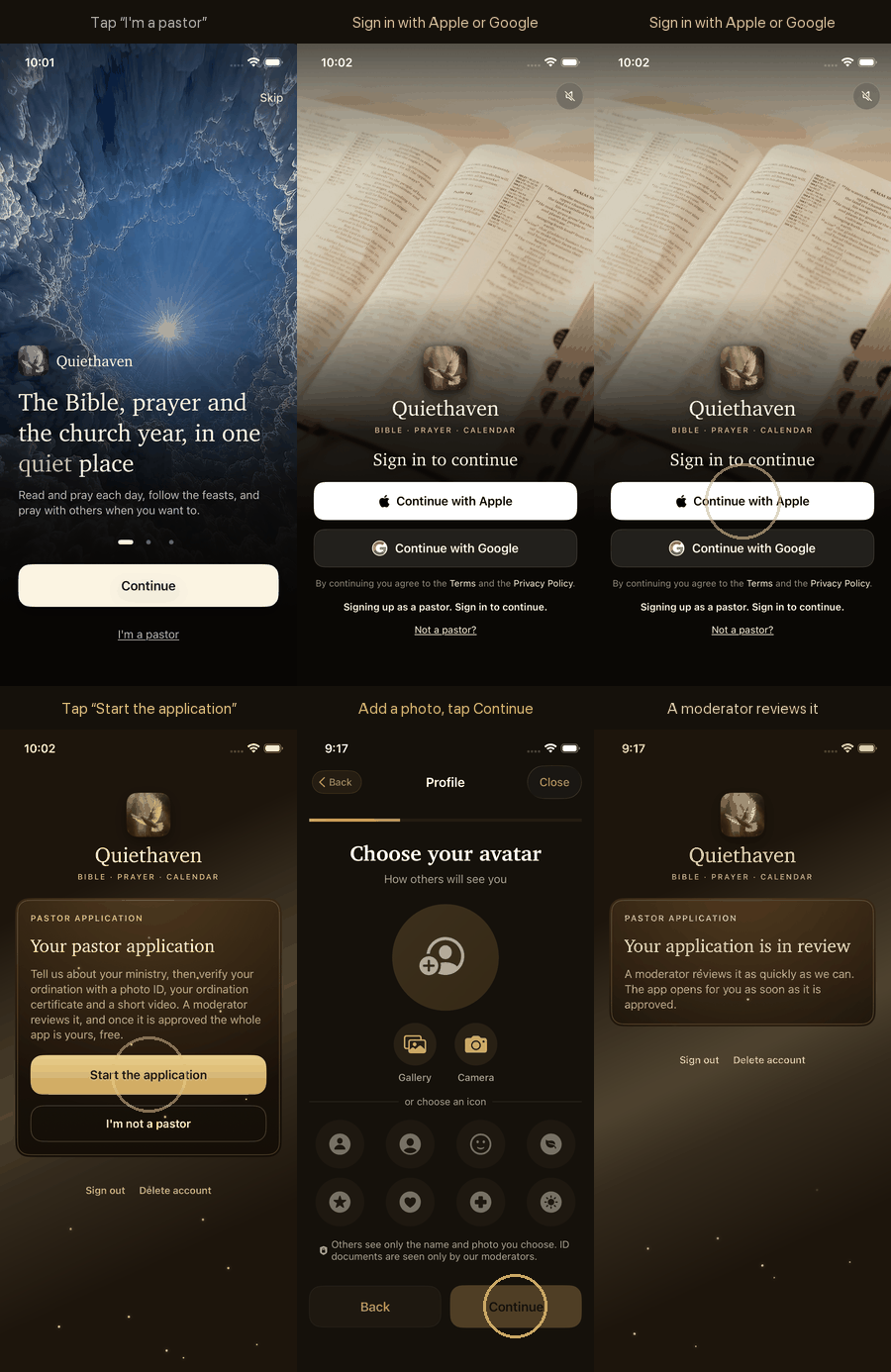
The whole way in, in 30 seconds
Before you start
- An iPhone, and about 10 to 15 minutes.
- An Apple ID or a Google account to sign in with.
- A government photo ID: passport, driver's license or national ID.
- Your ordination certificate, or a letter of orders. A photo of the paper is enough.
- The name of your parish or congregation. A phone number or an email a moderator can use to confirm you serve there is optional, but it speeds up the review.
- Optional, and it also helps: a recent letter of good standing from your diocese or denomination.
Step by step
1Install Quiethaven
Tap the App Store button below and install Quiethaven. It is free to download.
Do not buy a subscription. As a pastor you will not need one.
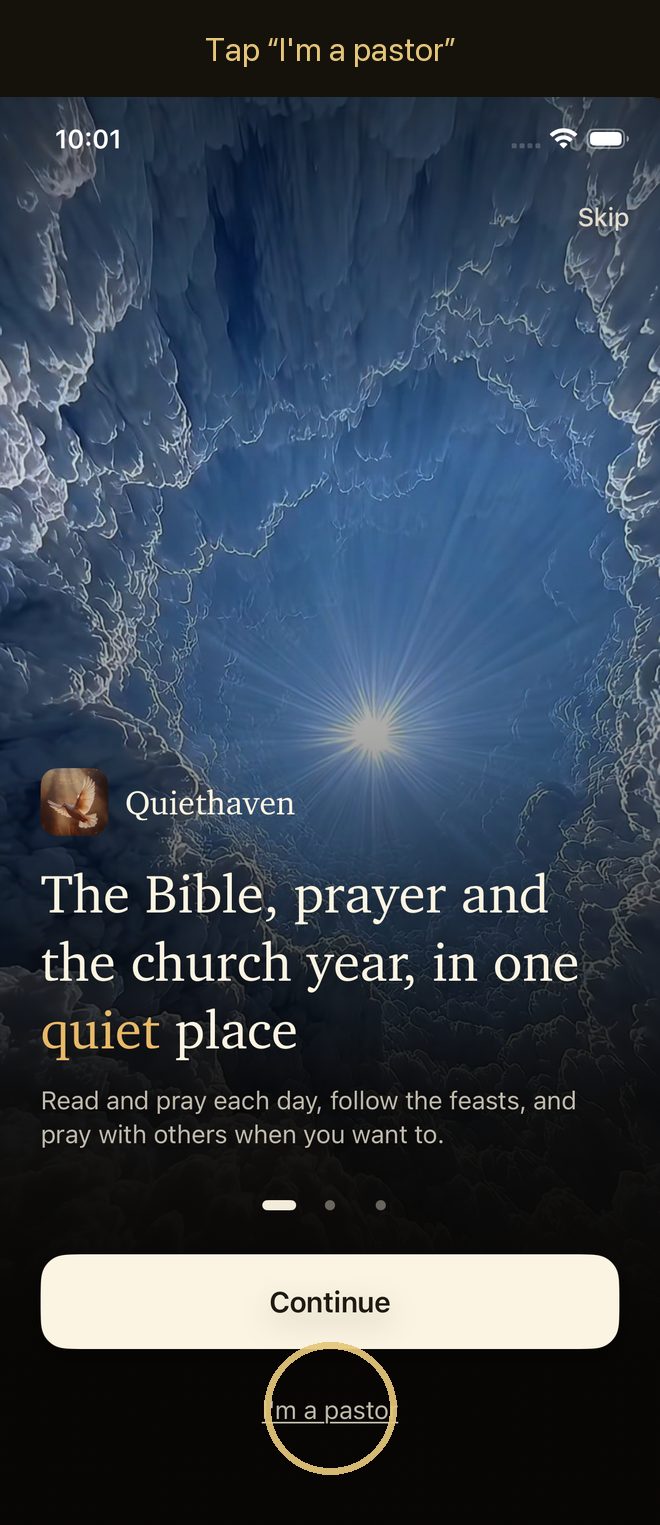
2Tell the app you are a pastor
Open Quiethaven. On the very first screen, under the Continue button, tap I'm a pastor.
Or come back to this page on the same iPhone and tap Open Quiethaven as a pastor above. Both do the same thing.
Already went past the first screen? The sign-in screen has the same I'm a pastor link at the bottom.
3Sign in
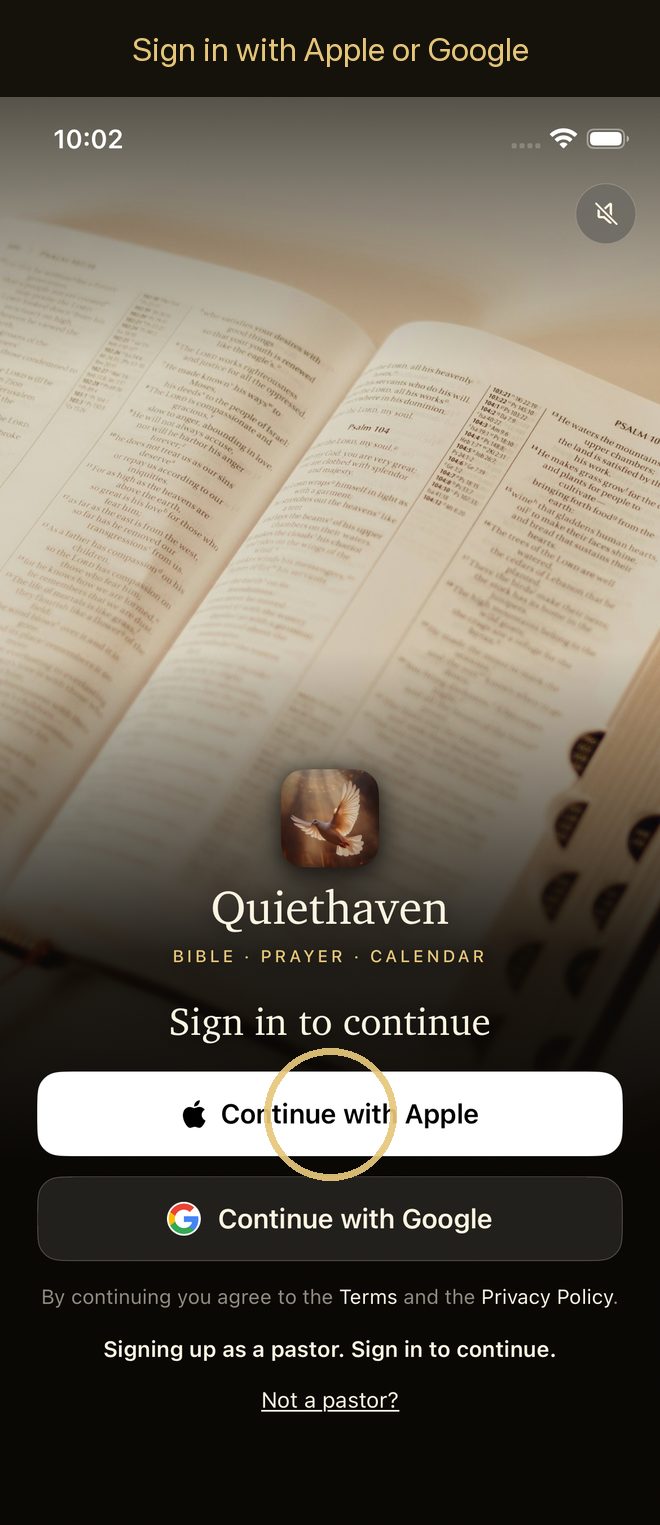
Tap Continue with Apple or Continue with Google. At the bottom of the screen you will see Signing up as a pastor. Sign in to continue. That line means the app knows you are a pastor.
Tapped it by mistake? Tap Not a pastor? right under that line.
Already use Quiethaven? Sign in with the same account, nothing is lost.
4Start the application
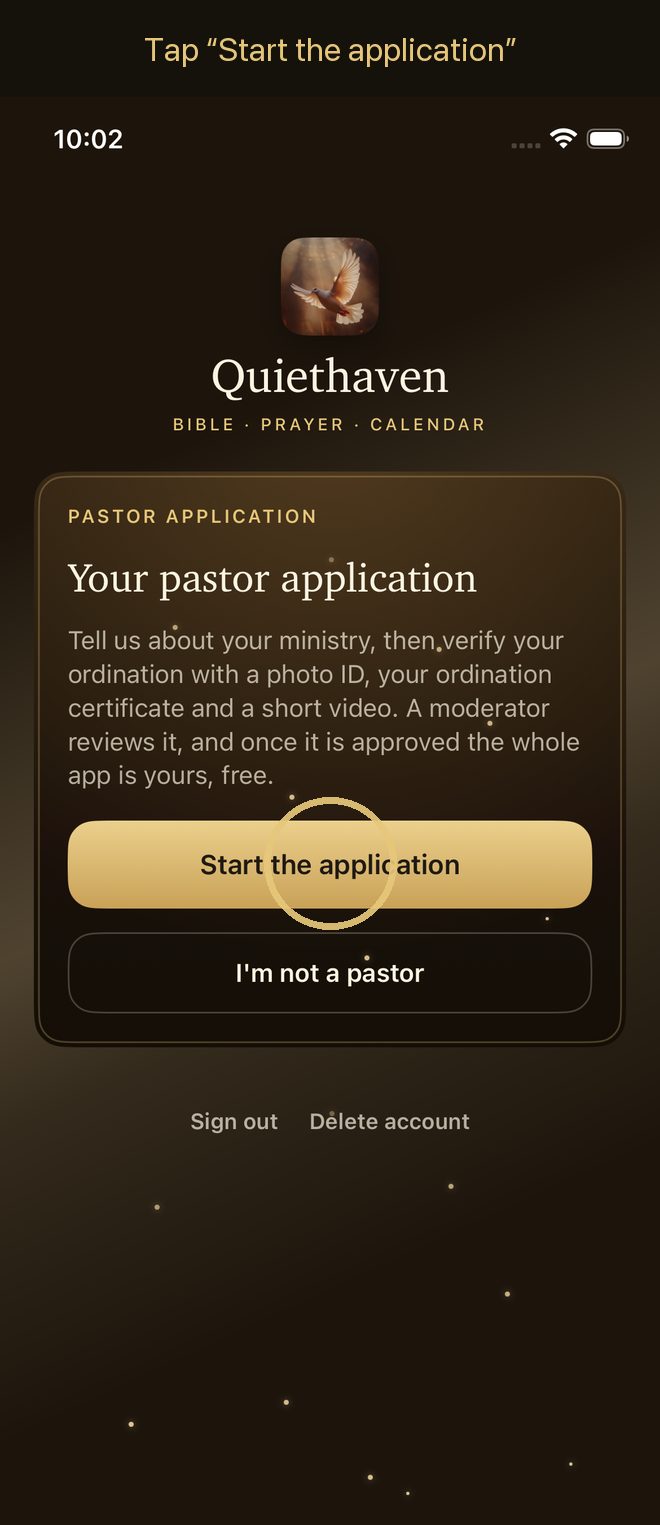
You see a card called Your pastor application. Tap Start the application.
Already paying for Quiethaven? Then there is no card: your app stays open, and the application opens over it. If the app asks Join Quiethaven as a pastor?, tap Start the application. Closed it before sending? Find it in Profile → Pastor application, or tap Open Quiethaven as a pastor at the top of this page again.
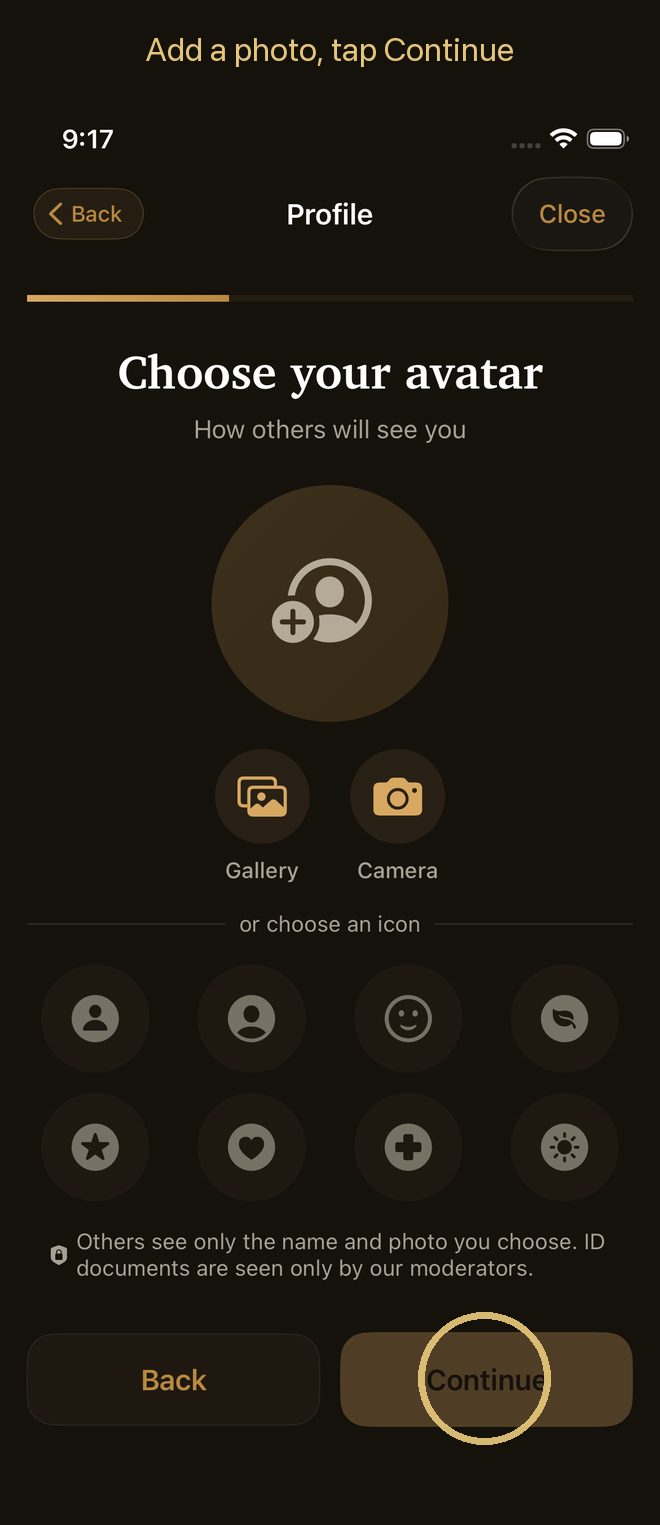
5Choose your photo
Pick how people will see you: a photo from Gallery, a new one with Camera, or one of the icons. Then tap Continue.
People see only the name and photo you choose here. Your ID documents are seen only by our moderators.
6Tell us about your ministry
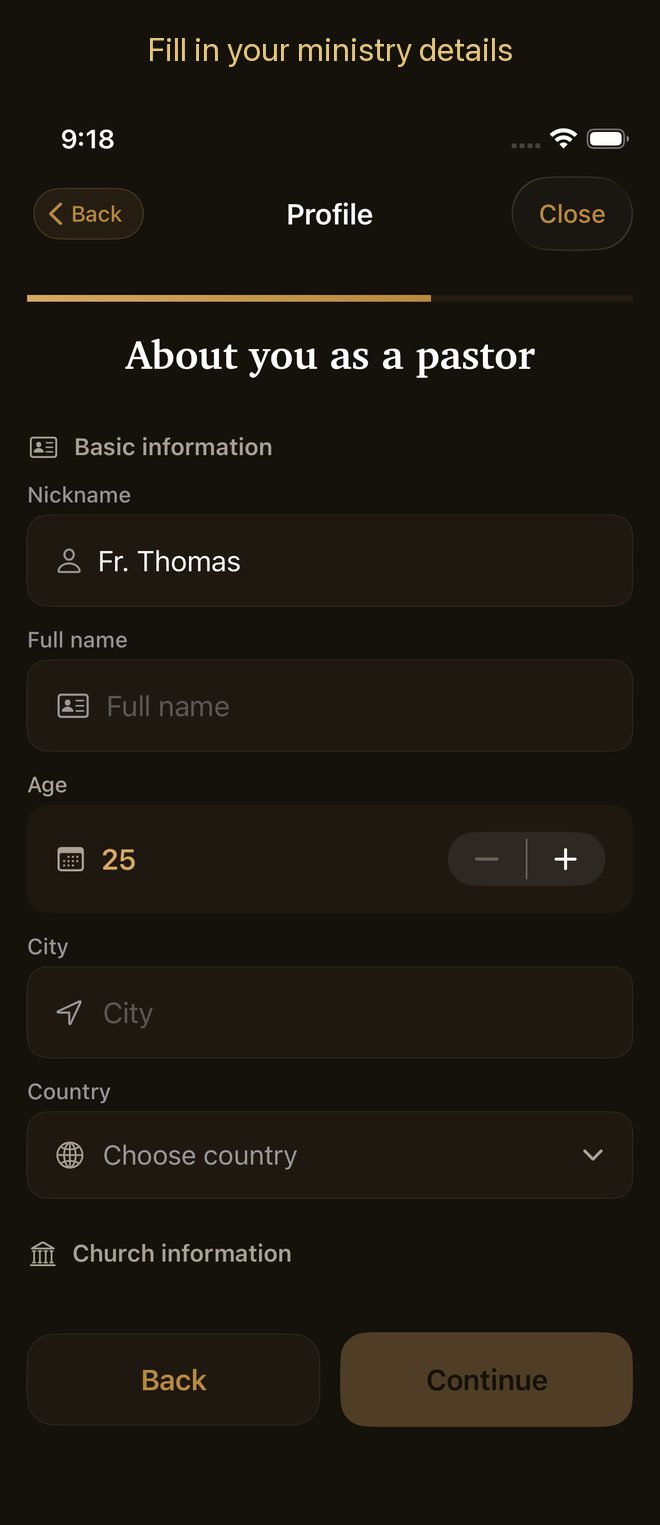
Fill in the form About you as a pastor. These fields are required:
- Nickname, the name people see, for example "Fr. Thomas" or "Pastor Ann".
- Full name, as on your ID.
- Age, City and Country.
- Denomination, and your Ordination, Parish, Diocese (or conference, or association) and Years of service.
Optional: tradition (for example Lutheran or Baptist), specializations, languages, and a few words about yourself. You can change all of it later.
The Continue button lights up when the required fields are filled. On the next screen, tap Start verification.
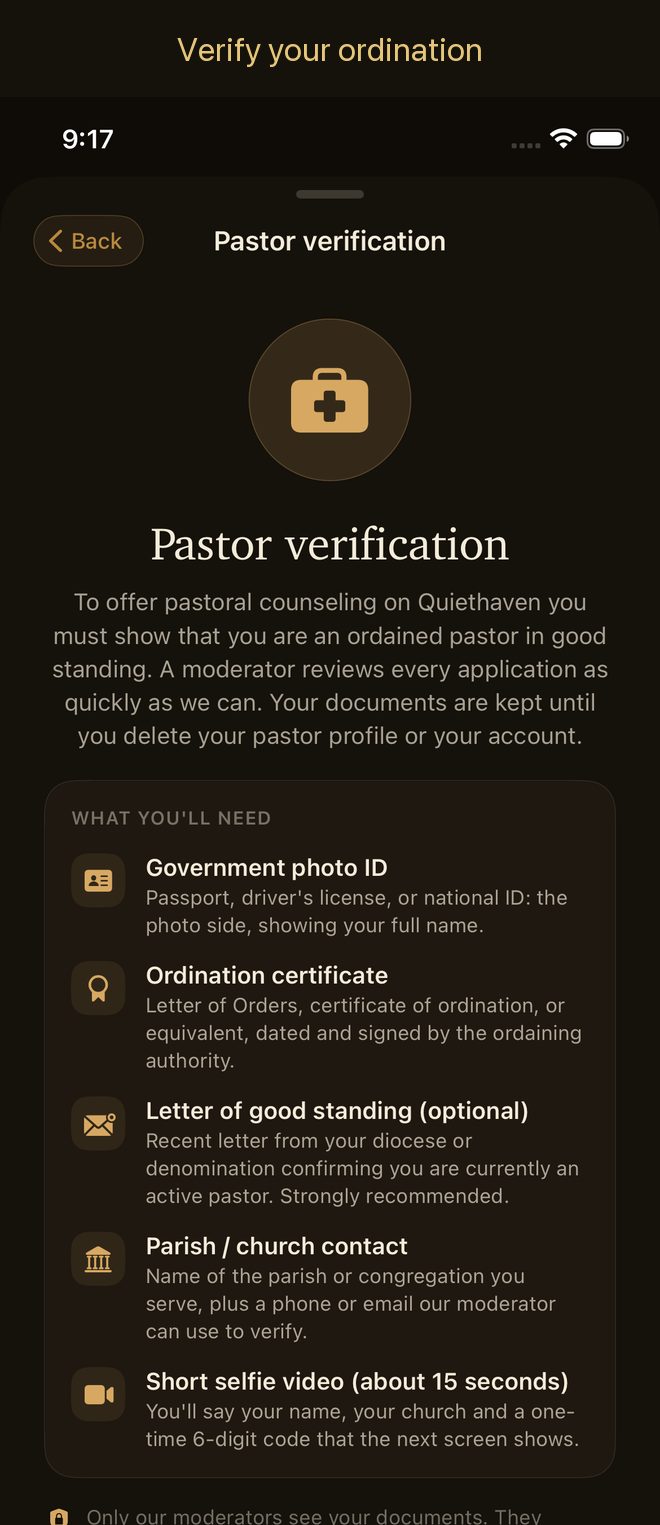
7Verify your ordination
The app walks you through it one screen at a time:
- Photo ID, front. Take a photo or choose one. The back is optional, you can skip it.
- Short selfie video, about 15 seconds. The app shows a 6-digit code. Record yourself saying your name, your church, and that code. Good light, face in the frame.
- Ordination certificate. A clear photo of the whole page.
- Letter of good standing. Optional. Skip it if you do not have one.
- Parish contact. The name of your parish or congregation (required), and a phone number or an email a moderator can use (optional).
- Local Network. A screen explains it, then your iPhone may ask to find devices on your local network. Tap Allow: calls with people need it.
- Review what you entered and tap Submit for review. When the upload finishes, tap Done.
Only our moderators see these documents.
If the first item says Identity check with Didit (or with Stripe), the photo ID and video steps are replaced by it: tap Verify with Didit, show your ID and take a live selfie in Didit's own pages, then come back and send the ordination certificate and parish contact as above. We never receive the images.
8Wait for the review
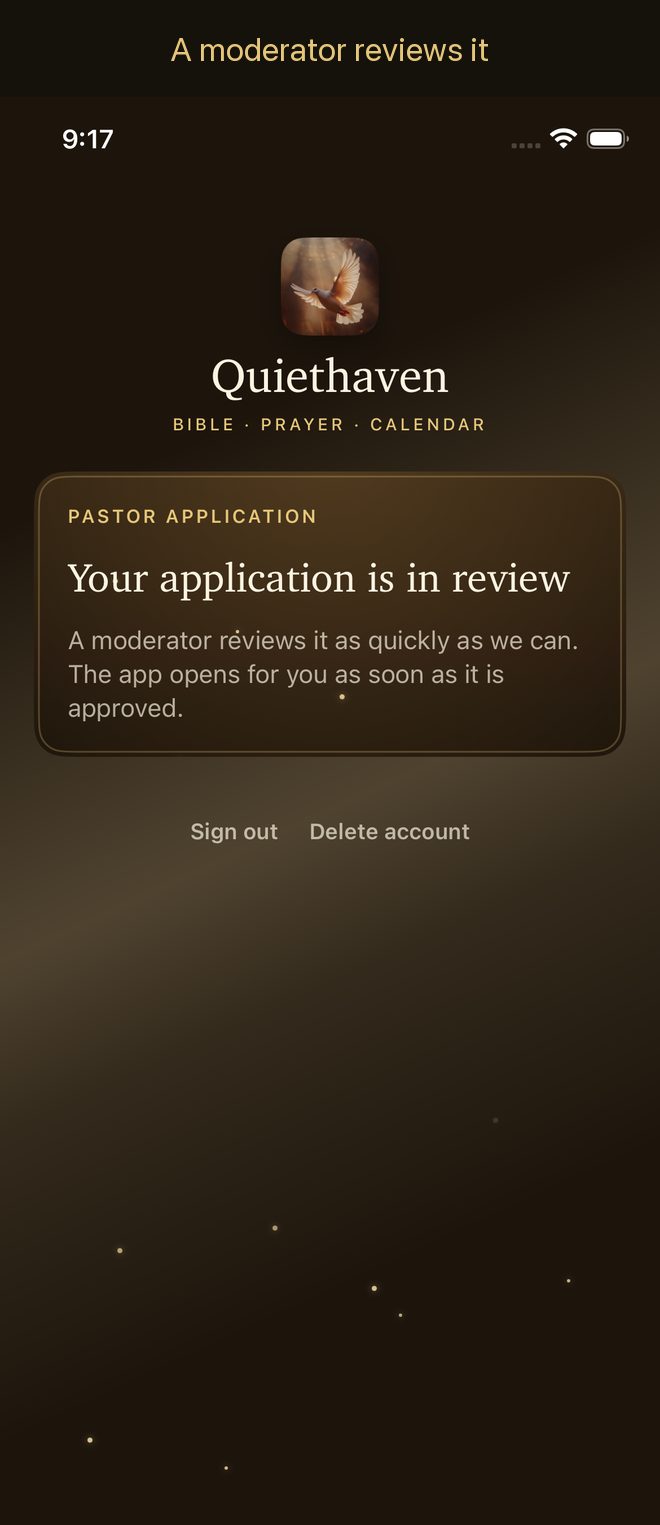
You will see Your application is in review. A moderator checks it as quickly as we can. You can close the app, your application is saved.
- Approved: open the app and everything is open for you, free. If you skipped the welcome pages, the app asks once which tradition you belong to. Then set your working hours in your pastor dashboard, and people can send you requests.
- More information needed: the app shows what the moderator asked for. Tap Apply again and send it.
- Not approved: the app shows the reason. You can tap Apply again.
If something goes wrong
- "We couldn't start your application". The app could not reach our server. Connect to Wi-Fi or mobile data and tap Try again.
- I went through the welcome pages and the app asks for a subscription. Do not buy it. Tap Open Quiethaven as a pastor at the top of this page on the same iPhone, and the app switches to your application.
- I'm not a pastor and tapped it by mistake. Tap I'm not a pastor on the application card. You go back to the regular way in. This works until you send your profile.
- I already have a subscription. Keep it until you are approved. After approval the app reminds you to cancel it, since you will no longer need it.
- I closed the app halfway. Open it again and tap the button on the application card: Start the application if your profile was not sent yet, Verify your ordination if only the documents are left.
- Quiethaven is for iPhone. It also runs on iPad, but there is no Android version yet.